Can we do coding in wordPress
can you code in wordpress
Yes. You can code in WordPress. And it’s a core part of making advanced, custom, professional sites. People think of WordPress as a no-code or low-code tool because of themes, plugins, and page builders. But it also gives developers a real environment for writing custom code. Coding in WordPress lets you go past basic features and build things that match specific business needs. These ideas fall into five main areas: Introduction to Coding in WordPress, Types of Coding in WordPress, Tools and Technologies Used, Benefits and Challenges, and Future Scope and Opportunities.
Introduction to Coding in WordPress explains the basics. WordPress runs on PHP, plus HTML, CSS, and JavaScript. Those languages together make the site structure, design, and behavior. Beginners can use WordPress without touching code. Developers can edit core files, themes, and plugins to change stuff. Coding becomes necessary when you want a custom design, a unique feature, or better performance. WordPress is flexible. Non-technical users and professional dev’s can work on the same platform.
Types of Coding in WordPress looks at how code gets used. Theme development is common. Developers write or change themes with HTML, CSS, and PHP to control how a site looks. Plugin development is another path. You build custom plugins to add features or extend what the site can do. JavaScript is used for interactivity, like animations and live content updates. You can also use child themes to make changes without altering the original theme. So coding in WordPress covers both design and functionality.
Tools and Technologies Used covers the tools developers rely on. Code editors such as Visual Studio Code or Sublime Text make writing and managing code easier. Git and other version control systems track changes and help teams collaborate. Local development environments let you test before you push code live. WordPress also exposes APIs and hooks so you can change behavior without editing core files. These tools keep development organized and make complex sites easier to build.
Benefits and Challenges talks about the upsides and the downsides. A big upside is flexibility. You can build highly customized sites that fit exact needs. Coding can also improve performance and give you more control over features and layout. The downsides are real. You need technical knowledge and experience. Mistakes can cause bugs or security problems. Custom code needs updates and testing. You have to balance customization with simplicity.
Future Scope and Opportunities looks ahead. Businesses want more advanced and personalized sites, so skilled WordPress developers are in demand. New approaches like headless WordPress and API-based development open more ways to customize. Developers who know both WordPress and code can build powerful, scalable solutions. Learning to code for WordPress leads to jobs in freelancing, web agencies, and larger companies. Coding skills will keep mattering as the web evolves.
In short, coding in WordPress is possible and useful for creating advanced, customized sites. The platform has plenty of no-code options, but coding gives you the control needed for professional work. Learn PHP, HTML, CSS, and JavaScript and you can unlock more of what WordPress can do. As demand for unique, high-quality websites grows, WordPress coding stays a valuable skill.
Block editor (Gutenberg)
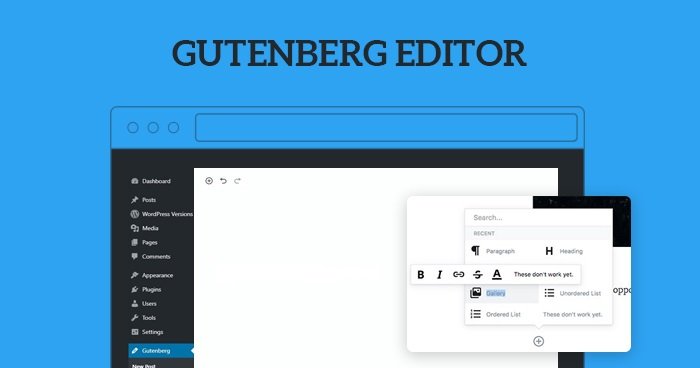
The WordPress Block Editor, usually called Gutenberg, is a modern content editor. It was made to make creating and managing website content easier and to give people more options. It replaced the old classic editor and uses blocks. Each block is a piece of content, like text and images. You can also have videos, buttons, or layout pieces. The block setup lets people build pages and posts without deep coding skills. That makes WordPress more accessible but still useful for developers. You can break the idea of the Block Editor into five main areas. Introduction to Gutenberg, Block-Based Content Creation, Features and Functionalities, Customization and Development, and Benefits and Future Scope.
Introduction to Gutenberg explains the basic switch. Before Gutenberg, WordPress had one big text editor. People often had to use shortcodes or custom HTML to get fancy layouts. Gutenberg flipped that. Now every piece of content is its own element. It becomes easier to organize and edit. You can add a block, delete it, or move it around. Makes the whole content process simpler and less messy.
Block-Based Content Creation looks at how you actually build a page. In Gutenberg every element is a block. Paragraphs, headings, images, galleries, lists. You pick blocks from a library and change them to suit your needs. Say you build a product page. You add a heading block for the product name. Then an image block for the photo. And a paragraph block for the description. Put blocks in any order. That gives you flexible and visual layouts.
Features and Functionalities covers what the editor can do. Gutenberg has lots of built-in blocks that handle most needs. It also has reusable blocks so you can save something and use it on other pages. Drag and drop makes moving things simple. You get real-time editing so you see what your site will look like. The editor supports media embedding, allowing users to add videos, social media posts, and other external content (easily). All this speeds things up and cuts down on hassle.
Customization and Development talks about how developers can extend it. Gutenberg is friendly for casual users, and it’s powerful for developers too. You can build custom blocks with JavaScript. You can tweak existing blocks to add features or change how they work. Gutenberg works with themes and plugins so developers can create unique layouts and experiences. Not just for beginners, then. It’s useful for pros as well.
Benefits and Future Scope looks at why it matters and where it’s headed. One big benefit is productivity. People can create and edit content faster and don’t have to jump to other tools. The visual editor lowers the need for coding, so more people can use WordPress. It also supports responsive design so content adapts to different devices. Going forward, Gutenberg will likely keep gaining features, get faster, and tie in more with modern web tech. It’s moving toward being the core way we build content in WordPress.
To wrap up, the WordPress Block Editor, Gutenberg, changes how sites are built and managed. The block approach makes content creation simpler while leaving room for deep customization. Whether you’re new to WordPress or an experienced developer, Gutenberg gives a modern way to design and manage content. As WordPress keeps evolving, the Block Editor will stay a central part of the ecosystem and help people make dynamic sites with less fuss.
The customizer:
The WordPress Customizer is a built-in feature that lets people change how their site looks and tweak basic settings in real time. You get a live preview so you can make a change and see it right away before you hit publish. Makes designing and adjusting a site easier even if you do not know code. Great for beginners. But it also gives developers room to fine-tune things. It ties into WordPress themes so you can control how a site looks and behaves. The idea of the Customizer can be explained across five major areas. They are Introduction to the Customizer, Features and Functionalities, Customization Options, Role in Development, and Benefits and Future Scope.
Introduction to the Customizer explains what it does. The Customizer gives a user-friendly place to change a site’s appearance and watch the results live. That live editing lowers the chance of mistakes and makes it easy to try different designs. You open it from the WordPress dashboard. Most themes include it. You can change the site title and add a logo. You can swap colors and tweak layout settings. This part shows how the Customizer simplifies design and makes the experience smoother.
Features and Functionalities covers the main tools. Live preview is a big one. Changes show up the moment you make them. That helps you see how settings affect the overall look. You can edit menus and widgets. You can also set the homepage. Color and font choices let you match a brand. Some themes add extra controls like layout options or advanced styling. This section shows the Customizer offers a solid set of tools for managing design.
Customization Options goes into the kinds of changes you can make. You can set the site identity by adding a logo, changing the title, and updating the tagline. Color controls let you pick primary and secondary tones for the site. Typography options change font styles and sizes so text reads better. Layout settings let you move sidebars or change content width. Widgets can be added to show recent posts or social links. The point here is the Customizer adapts a site to different needs.
Role in Development looks at how developers use it. It was built to be user friendly, yet it supports advanced tweaks through code. Developers can add custom settings and controls with PHP and JavaScript. That makes it possible to build themes with unique options. The Customizer also works with WordPress APIs so managing settings and keeping compatibility is easier. So it is not just for beginners. Developers get a powerful tool too.
Benefits and Future Scope describes the upside and what’s coming. A big benefit is you can change things without writing code. Live preview boosts accuracy and cuts mistakes. The Customizer also helps keep design consistent so elements play well together. As WordPress evolves, the Customizer is expected to work more closely with block-based design and full-site editing. The tool should remain a key part of customizing sites going forward.
Overall, the WordPress Customizer is a practical, user-friendly way to design and modify websites. It gives real-time feedback, flexible options, and support for both beginners and developers. Use it well and you can build attractive, functional sites without heavy coding. Part of the WordPress ecosystem and still central to managing site design and the user experience.
Theme file editor:
The WordPress Theme File Editor is a built-in tool that lets you edit the code of your active theme right from the WordPress dashboard. You can open PHP, CSS, and sometimes JavaScript files. Developers use it to tweak design and add features without leaving the browser. It gives a lot of control, but you have to be careful. One bad change can break a site. Mostly used by developers and advanced users who know code. You can explain it across five main areas. They are: Introduction to the Theme File Editor, Structure of Theme Files, Editing and Customization Process, Benefits and Risks, and Best Practices and Future Scope.
The first area, Introduction to the Theme File Editor, covers what the feature does. You reach it from the dashboard and edit files in the browser. No need to download files, edit locally, then upload. Makes quick fixes faster. Because it edits the site’s code directly, it’s best for people who know PHP, HTML, and CSS. Beginners are usually told to use the Customizer or page builders instead. Powerful, but sensitive.
The second area, Structure of Theme Files, looks at the files you’ll see in the editor. A theme is a collection of files that control different parts of a site. The main one is style.css which sets design and layout with CSS. functions.php holds custom functions that add features. Template files like header.php, footer.php, and index.php shape pages. There can also be files for single posts or archive pages. Each file has a role. You should know what each does before you edit.
The third area, Editing and Customization Process, explains how to make changes. Pick a file from the list and edit it right in the code editor. Change CSS to alter colors or layout. Edit PHP to add functionality. Tweak HTML to adjust structure. Changes take effect as soon as you save, so double-check your code. Developers use it for quick fixes and small tweaks. For bigger work, use a local environment or a child theme.
The fourth area, Benefits and Risks, covers the upside and the danger. The big upside is speed. You can open and edit files without leaving WordPress. You get precise control over the site. The downsides matter though. A typo can crash the site because edits apply instantly. Security is a concern too. If someone else gets access to the editor, they can change code for bad reasons. So use it carefully and only if you know what you’re doing.
The fifth area, Best Practices and Future Scope, talks about safer use. Always make backups before you change files so you can restore the site if something breaks. Use a child theme so updates don’t overwrite your edits. Test in a staging or local environment before touching a live site. Limit who can access the editor to reduce risk. WordPress is moving toward safer and easier customization tools, but the Theme File Editor will still be useful for people who need direct control.
To wrap up, the Theme File Editor lets you edit theme code directly and gives strong control over customization. It’s fast and precise, but it can also cause real problems if used without care. Learn the theme file structure, follow safe practices, and use local testing and child themes when needed. For developers who want to go beyond basic tweaks, it’s a handy tool.
Plugins:
Plugins are one of WordPress’s biggest strengths. They let you add features without building everything from scratch. A plugin is just software you install on a WordPress site. It adds new features or improves ones you already have. Add a contact form. Improve SEO. Run an online store. Tighten security. Plugins let you shape a site to your needs. They make WordPress flexible and able to handle different kinds of sites. Think of plugins in five areas. Introduction to Plugins, Types of Plugins, Installation and Management, Benefits and Challenges, and Future Scope and Importance.
Introduction to Plugins explains the basic idea. WordPress has a core that gives the basic tools for making and managing sites. Plugins extend that core without changing it. Keeps things modular. You only add what you need, so sites stay lighter. Say an e-commerce site uses WooCommerce to add store features. A business site might use a contact form plugin to capture inquiries. Bottom line: plugins are what let you customize WordPress.
Types of Plugins looks at the categories you’ll find. There are thousands in the WordPress repository, covering many functions. You’ll see SEO and security tools. Performance boosters and design helpers too. Yoast SEO helps optimize content for search engines. Caching plugins speed up a site. There are also plugins for social media, analytics, backups and user management. E-commerce plugins add product listings, payment gateways and order handling. Plugins can beef up almost any part of a website.
Installation and Management covers how to add and keep plugins running. Install from the dashboard by searching the plugin directory or upload plugin files. Activate or deactivate as needed. Keep plugins updated for compatibility, security and speed. Tweak settings so they fit your site. Manage them by choosing reliable options, avoiding stuff you don’t need, and keeping everything current. That’s how you keep a site stable.
Benefits and Challenges goes over the ups and downs. The main upside is you can add complex features without coding. Saves time. Speeds up development. Lets you customize a site to your needs. But there are downsides. Plugins can conflict with each other. They can introduce security holes. Too many plugins can slow a site. Choose quality plugins and maintain them to avoid most problems.
Future Scope and Importance looks at where plugins are headed. Plugins are getting more advanced. Think AI integration, more automation, better user experience. People want customized websites, and plugins will keep answering that demand. Developers keep making new plugins for new needs, which keeps the WordPress ecosystem active. Plugins will stay central to building powerful, feature-rich sites.
Plugins are a core part of WordPress. They range from tiny tools to full systems. Use them right and you get flexible, scalable, high-performing sites. Use them badly and you can run into trouble. Pick the right ones, manage them, and plugins will let you build almost any kind of website.
External access(FTP/cpanel):
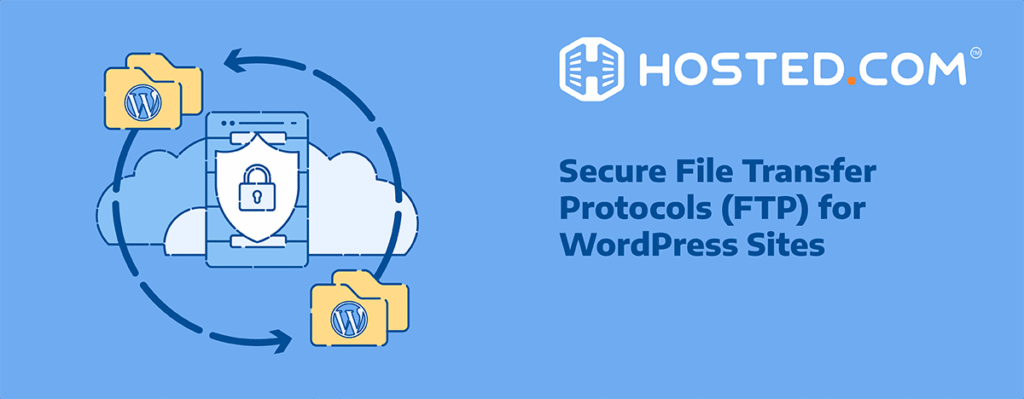
WordPress external access through FTP and cPanel means you can manage a WordPress site without using the normal dashboard. The dashboard is easy to use for basic stuff. But it can’t do everything. Developers and advanced users often need to get into files, databases, and server settings. That’s when FTP (File Transfer Protocol) and cPanel matter. They let you upload, edit, and manage files right on the server. More control. More flexibility. External access is useful for troubleshooting, backups, migrations, and deeper customization. You can break the idea down into five main areas. Introduction to External Access, Understanding FTP, Understanding cPanel, Use Cases and Benefits, and Best Practices and Future Scope.
The first area, Introduction to External Access, covers why it’s needed. The dashboard is built for ease, so it hides a lot. You can’t do some file-level or server-level tasks there. External access lets you work with the site’s core files and the hosting environment directly. That helps when errors lock you out of the dashboard. Developers also use it to customize themes, install plugins by hand, and move big files. Bottom line: external access is part of running and maintaining a WordPress site well.
The second area, Understanding FTP, looks at File Transfer Protocol and how it’s used with WordPress. FTP moves files between your computer and the web server. People often use programs like FileZilla and log in with credentials from their host. Once you’re connected you can upload, download, edit, or delete files straight on the server. Say a plugin breaks the site and it won’t load. You can remove that plugin folder via FTP and get the site back. FTP is also handy for uploading themes, backing up files, and making manual edits. It gives direct control over the files that run your site.
The third area, Understanding cPanel, explains what that control panel does. cPanel is a web interface many hosts provide. It bundles tools to manage files, databases, email, and domains. There’s a File Manager so you can edit files without using FTP. And tools like phpMyAdmin let you work on the WordPress database — useful for things like resetting passwords or repairing tables. cPanel usually includes backup and restore options too. So you get a set of tools to handle a lot of site and server tasks in one place.
The fourth area, Use Cases and Benefits, goes over why external access helps. One big advantage is fixing things when the dashboard won’t load. You can remove broken plugins, roll back files, or restore backups. Developers get more freedom to customize the site at a deeper level. And large file uploads that the dashboard might block are easier via FTP. cPanel makes server chores simpler by putting options in one interface. These tools also speed up certain workflows. You can do several operations quickly without wrestling with the dashboard limits.
The fifth area, Best Practices and Future Scope, covers safe and effective use. Security matters. Keep login details private. Use secure connections like SFTP rather than plain FTP. Make backups before you change anything to avoid losing data. Know the WordPress file structure before editing files. Limit access to people you trust so nothing gets changed by mistake. Hosting platforms are getting friendlier and adding automation. Still, FTP and cPanel will remain useful for more advanced tasks. Responsible use and ongoing learning matter here.
All told, external access through FTP and cPanel gives you tools the dashboard can’t. You can handle files, databases, and server settings with more control. They do need technical know-how and careful handling, but they’re essential for troubleshooting, customization, and efficient site management. Learn how they work and follow good practices, and your WordPress site will be easier to maintain and more reliable over time.